
How to Add Qibla Compass to Control Center
Open Control Center editing, add either the Qibla Compass or Qibla Camera control, and place it where you can reach it quickly. The control opens the selected app view without searching through the Home Screen.
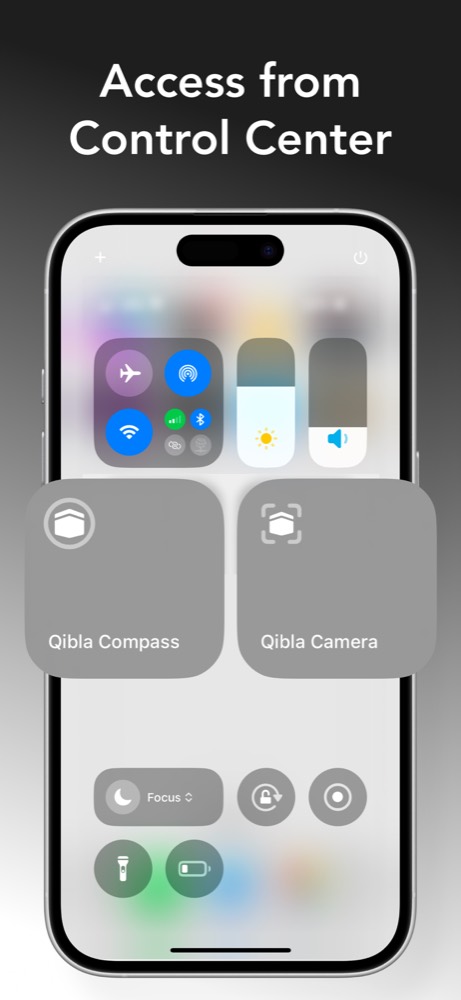
Choose the control that matches how you pray
Qibla Compass opens the focused direction dial. It is the better default when you want a quick bearing and already know how to relate a compass line to the room. Qibla Camera opens the live camera view, which can help when you are in a hotel, office, or unfamiliar prayer space.
You can add both if you use them in different situations. Place the control you use most in an easy-to-reach position rather than filling Control Center with duplicate shortcuts.
Add the Qibla control
- Install or update Qibla Compass from the App Store.
- Open Control Center and enter its editing mode.
- Choose the option to add a control.
- Search the available controls for Qibla Compass.
- Add Qibla Compass, Qibla Camera, or both, then drag them to the position you prefer.
- Exit editing and tap each control once to confirm that it opens the expected view.
The exact editing gesture can vary with the iOS version, but the goal is the same: open the control gallery, select the app control, and position it.
Use the Control Center shortcut to remove a few taps between deciding to pray and checking the direction.
Get Qibla CompassPrepare the app before relying on the shortcut
Open the full app once and handle location or camera permission prompts. A shortcut cannot produce a useful direction if location access is disabled. If you plan to use Qibla Camera, confirm camera permission as well.
Test the control in a clear area. Hold the phone flat, move away from magnets and metal, and make sure the direction settles. Control Center makes access faster, but it does not change how the compass sensor works.
When the control is missing or opens the wrong view
First confirm that the app is installed and current. Reopen the control gallery after updating. If you added both controls, compare their icons and labels, then remove and add them again in the order you want.
If the app opens but the direction is unavailable, check location permission. If camera mode opens to a blank or restricted view, check camera access under Privacy & Security.
After fixing a permission, close Control Center and test the shortcut again from the Lock Screen and Home Screen. This confirms that the control is available where you plan to use it.
Control Center questions
What is the difference between Qibla Compass and Qibla Camera controls?
Qibla Compass opens the direction dial. Qibla Camera opens the live camera view with the direction marker over your surroundings.
Why can’t I find the Qibla control?
Make sure Qibla Compass is installed and updated, then reopen the Control Center control gallery on a supported iOS version.